> For the complete documentation index, see [llms.txt](https://docs.extraaedge.com/llms.txt). Markdown versions of documentation pages are available by appending `.md` to page URLs; this page is available as [Markdown](https://docs.extraaedge.com/workflow-automation/three-workflow-categories.md).
# Three Workflow Categories:
Workflow Automation offers multiple categories to help you design automations based on your business needs.
**Each category serves a specific purpose, from making internal system updates to running full-fledged communication journeys.**
This section provides an overview of all available Workflow Automation categories and helps you choose the right one while creating an automation.
When you create a new workflow, you will be asked to select one of the following categories:
### 1. Update Attributes, Fields, or Add Milestones -
This workflow category is used to automate **internal system updates** without sending any communication to the lead. It helps you keep your CRM data updated automatically based on defined conditions.
#### What Can You Do Using This Category?
You can use this category to:
* Update lead or application attributes such as **Priority**, **Lead Owner**, **Status**, etc.
* Apply updates **immediately** or after a defined **time delay**.
This category is ideal when only backend or CRM-level changes are required and no communication needs to be sent to the lead.
### How to Configure This Workflow (Step-by-Step)
#### Step 1: Select the Category
* While creating a new workflow, select **Update Attributes, Fields, or Add Milestones** as the workflow category.
#### Step 2: Add Basic Workflow Details
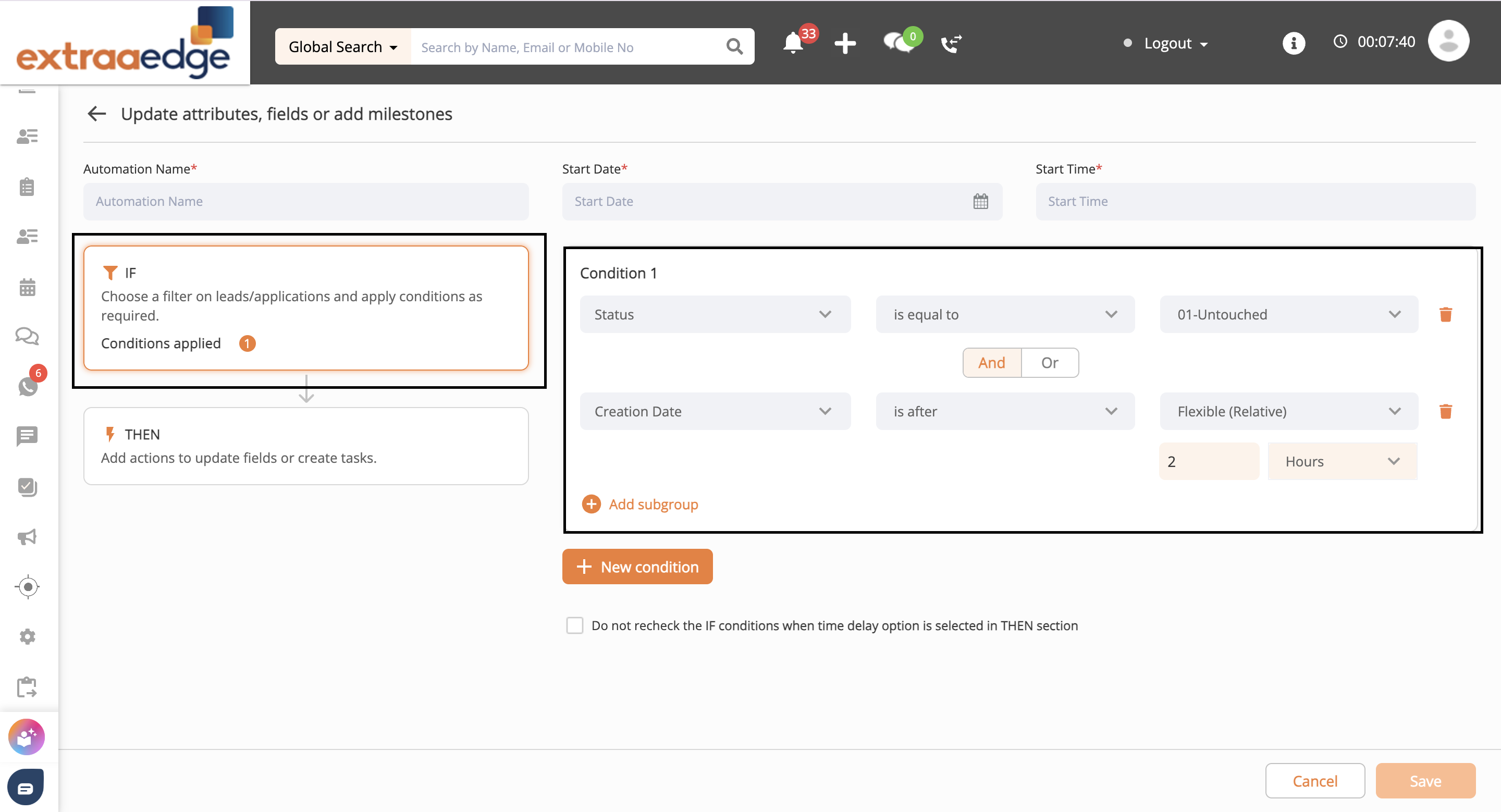
Once the category is selected, a new dashboard will open as you can see this below.
Here, you need to enter the basic information:
* **Automation Name** – Give a meaningful name to identify the workflow easily.
* **Start Date** – Select the date from which the automation should start.
* **Start Time** – Define the time at which the automation should begin running.
#### Step 3: Define the IF Condition (Trigger Rules)
On the **left-hand side**, just below the automation name, you will see the **IF** and **THEN** options.
In the **IF** section:
* Choose whether the workflow should apply to **Leads** or **Applications**.
* Apply the required **filters and conditions**.
**Example:**
* Status is equal to **Untouched**
* Lead Creation Date is **more than 2 hours ago**
This means the workflow will only trigger for leads that were created more than 2 hours ago and are still untouched.
#### Step 4: Define the THEN Action (System Update)
After setting the IF condition, move to the **THEN** section.
Here, you can define what action should be taken once the conditions are met.
**Example continuation:**
* Select **Change Lead Owner**
* Choose the **new Lead Owner** from the list
Once configured, the system will automatically update the lead owner for all leads that match the IF conditions.
#### How This Helps
* Ensures leads are automatically reassigned if not actioned on time.
* Keeps lead data updated without manual intervention.
* Reduces dependency on manual monitoring and follow-ups.
{% hint style="info" %}
This completes the setup for the **Update Attributes, Fields, or Add Milestones** workflow. In the next section, we will explore more use cases and advanced configurations for this category.
{% endhint %}
### 2. Send Immediate Communication -
#### **What Can You Do Using This Category?**
This category helps you send **instant communication** to leads based on specific actions or conditions, without any manual effort. It ensures:
* Immediate response to lead actions
* Faster engagement and improved conversion
* Consistent communication using predefined templates
You can automatically send **Email, SMS, or WhatsApp** messages as soon as the defined condition is met.
### **How to Configure This Workflow (Step-by-Step)**
#### **Step 1: Select the Category**
* Choose **Send Immediate Communication** from the workflow automation categories.
#### **Step 2: Add Basic Workflow Details**
Once the category is selected, a new dashboard will open.
Enter the following details:
* **Automation Name**\
Give a meaningful name to easily identify the workflow.
* **Start Date**\
Select the date from which the automation should start.
* **Start Time**\
Define the time at which the automation should begin running.
#### **Step 3: Define the IF Condition (Trigger Rules)**
In this step, you need to define **when** the communication should be sent.
* Select the **IF condition**\
Example: Lead Status **is equal to** Interested
* You can add **multiple conditions** based on your requirement.\
For example: If you want to send communication only for a **specific course**, you can add a course-related condition along with the status condition.
#### **Step 4: Configure the THEN Action (Send Communication)**
Under the **THEN** section, define **how** the communication should be sent.
* Select the **communication type**:
* Email
* SMS
* WhatsApp
* Configure the communication details:
* **Sender Name**
* **From Email Address**
* **Reply-To Email Address**
* Select the **recipient** for the communication:
* Primary Email or Primary Number
* Alternate Email or Alternate Number
* Father Email or Father Number
* Mother Email or Mother Email
#### **Step 5: Select and Manage Templates**
* Choose the **Email or WhatsApp template** created in the system.
* You can:
* **Preview** the template using the eye icon on the right side
* **Remove/Delete** the selected template if chosen by mistake
* **Add a new template** as required
#### **Step 6: Save the Workflow**
* Once all conditions and actions are configured, click on the **Save** button available at the **bottom-right corner** of the screen.
#### **Step 7: Confirm and Activate the Workflow**
* After clicking on **Save**, a **Save Workflow confirmation pop-up** will appear.
* Review the configured workflow rule details carefully.
* Click on **Confirm** to proceed.
* Once confirmed, the workflow automation will be **successfully saved and activated**.
#### **Outcome:**
* Leads receive **instant communication** as soon as the defined condition is met.
* No manual dependency for sending emails or WhatsApp messages.
* Improved response time and better lead engagement.
{% hint style="info" %}
This completes the setup for the **Send Immediate Communication** workflow. Using this category, you can ensure instant engagement with leads through automated Email, SMS, or WhatsApp messages based on defined conditions.
{% endhint %}
### 3. Nurture With Time Based Workflow -
\
The **Nurture with Time-Based Workflow** category allows you to automate **multiple actions over a defined timeline**. You can send a series of communications with time delays, trigger dependent actions based on lead responses, and update CRM attributes automatically.
This category is designed to help you **nurture leads systematically** while also ensuring your CRM data remains accurate and up to date without continuous manual intervention.
### **What Can You Do Using This Category?**
You can use this category to:
* Send **multiple communications** (Email, SMS, WhatsApp) with a **time delay** between each message.
* Configure **dependent actions** based on outcomes (for example, whether a lead responds or not).
* Automatically **update lead or application attributes** such as:
* Priority
* Lead Owner
* Lead Status
* Other custom fields
* Apply updates **immediately** or **after a defined time interval**.
* Automate internal CRM updates **without sending any communication** to the lead, when required.
#### **When Should You Use This Category?**
* When you want to **nurture leads over a period of time** instead of sending a single instant message.
* When CRM fields need to be updated automatically based on lead behavior or time-based rules.
* When only **backend or system-level updates** are required and **no communication** needs to be sent to the lead.
#### **How to Configure This Workflow (Step-by-Step)**
#### **Step 1: Select the Workflow Category**
* Choose **Nurture with time based workflow** from the Workflow Automation categories.
#### **Step 2: Add Basic Workflow Details**
Once the category is selected, a new dashboard will open. Enter the following details:
* **Automation Name:**\
Provide a meaningful name to easily identify the workflow.
* **Start Date:**\
Select the date from which the automation should start.
* **Start Time:**\
Define the time at which the automation should begin running.\